Using a M5AtomS3R to display live bus arrival info
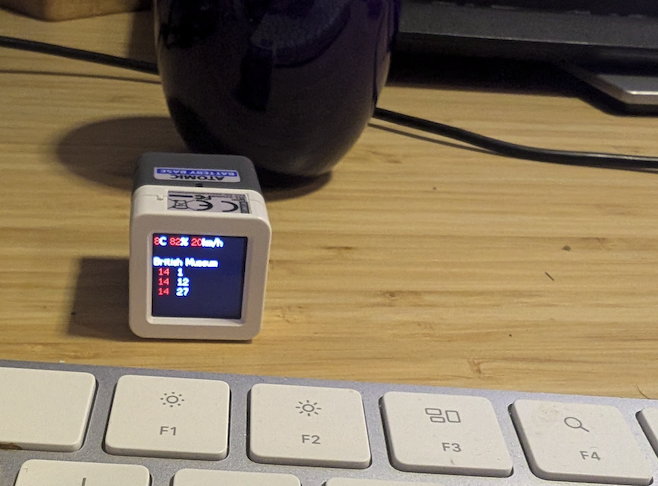
I’ve been meaning to play with microcontrollers for a long time. When I was at university, I was really jealous of my friends who had studied electronics in high school and were able to use these mysterious devices. The learning curve was really hard before ESP32 and Arduino made things much more standard and easy. The latter, especially, came with an IDE that, over time, has become the de facto standard not just for the Arduino family of devices, but also for a range of others, supported by installing external libraries.
When I got my hands on this tiny, roughly 1in x 1in Atom S3R I didn’t quite know what to expect, but using it was as easy as taking these 3 steps:
- installing the Arduino IDE on my laptop
- adding the M5Stack board manager in the IDE
- plugging the USB-C cable in, and starting playing with the many example available.
With a colour LCD screen, this little device, costing about £15, can do a lot, including displaying videos. But I was more interested in its WiFi ability, low power use, and ease of interaction. In fact, one of the least documented features is the screen doubling-up as a button!
So here’s what I did after some general play with the M5AtomS3.h library (which gives the ability to use the button and the display):
- using
WiFi.hI was able to connect to my home wireless network - using
HTTPClient.hI downloaded data from two publicly available APIs, for weather information and live bus arrivals at my local bus stop - using
ArduinoJson.hI was able to parse the data coming from the API without having to go too low-level (the IDE source code is still written in what is fundamentally C).
As simple as that, and I now have this lovely device near my front door telling me when the next buses are and updating upon a button press. Technology is amazing eh? So here’s the full source code:
First, we import all the required libraries.
#include <M5AtomS3.h>
#include <WiFi.h>
#include <ArduinoJson.h>
#include <ArduinoJson.hpp>
#include <HTTPClient.h>
We set some globals variables for parsing and time-keeping (if required) in the main loop:
// Replace with your network credentials
#define WIFI_SSID "SSID"
#define WIFI_PASS "password"

// Variables for time keeping
unsigned long timer, interval = 60000; // 60 seconds

// struct for predictions
struct PredictionStruct {
  String lineName;
  int timeToStation;
};
PredictionStruct myPredictions[15]; // assuming we don't get more than 15 predictions

// global variables for HTTP connection
String payload;
HTTPClient http;
String serverPath;
JsonDocument doc;
DeserializationError error;
const char* mystring;
int httpResponseCode;

// global variables for weather info
double temperature;
double windSpeed;
double humidity;
Our main functions are a comparator to run a quicksort algorithm on the structure array, so we can sort the bus arrivals by expected time, and the main data update body that calls the API and prints out the results:
// Comparison function for sorting
int comparePrediction(const void* a, const void* b)
{
return ((struct PredictionStruct*)a)->timeToStation
- ((struct PredictionStruct*)b)->timeToStation;
}
void dataUpdate() {
// API CALLING - WEATHER
serverPath = "https://api.open-meteo.com/v1/forecast?latitude=51.50735&longitude=-0.122¤t=temperature_2m,relative_humidity_2m,wind_speed_10m,precipitation";
http.begin(serverPath.c_str());
httpResponseCode = http.GET();
if (httpResponseCode>0) {
payload = http.getString();
} else {
Serial.print("Error code: ");
Serial.println(httpResponseCode);
}
mystring = payload.c_str();
error = deserializeJson(doc, mystring);
// Test if parsing succeeds
if (error) {
// Printing to Serial allows for debugging when we plug the device in the computer and run via the Arduino IDE
Serial.print(F("deserializeJson() failed: "));
Serial.println(error.f_str());
return;
}
temperature = doc["current"]["temperature_2m"];
humidity = doc["current"]["relative_humidity_2m"];
windSpeed = doc["current"]["wind_speed_10m"];
// We now print the weather data
M5.Lcd.fillScreen(BLACK);
M5.Display.clear(BLACK);
M5.Display.setCursor(0, 0);
M5.Display.setTextColor(RED); M5.Display.print((int)round(temperature));
M5.Display.setTextColor(WHITE); M5.Display.print("C ");
M5.Display.setTextColor(RED); M5.Display.print((int)round(humidity));
M5.Display.setTextColor(WHITE); M5.Display.print("% ");
M5.Display.setTextColor(RED); M5.Display.print((int)round(windSpeed));
M5.Display.setTextColor(WHITE); M5.Display.print("km/h");
// API CALLING - TFL
serverPath = "https://api.tfl.gov.uk/StopPoint/490004359OA/Arrivals";
http.begin(serverPath.c_str());
httpResponseCode = http.GET();
if (httpResponseCode>0) {
// all good
payload = http.getString();
//Serial.println(payload);
} else {
Serial.print("Error code: ");
// Serial.println(httpResponseCode);
}
mystring = payload.c_str();
// Parse the JSON
error = deserializeJson(doc, mystring);
if (error) {
Serial.print(F("deserializeJson() failed: "));
Serial.println(error.f_str());
return;
}
M5.Display.println("");
M5.Display.println("");
M5.Display.setTextColor(WHITE);
int i = 0;
while (i <10) {
Serial.println(i);
myPredictions[i].lineName = "";
myPredictions[i].timeToStation = NULL;
i++;
}
int index = 0;
String stationName = "" ;
// Iterate through JSON Array
for (JsonObject elem : doc.as<JsonArray>()) {
int timeToStation = elem["timeToStation"];
String lineName = elem["lineName"];
String stn = elem["stationName"];
myPredictions[index].lineName = lineName;
myPredictions[index].timeToStation = timeToStation;
stationName = stn;
index++;
}
M5.Display.println(stationName);
Serial.println("Index...");
Serial.println(index);
// Sort the array
int n = index;
qsort(myPredictions, n, sizeof(struct PredictionStruct), comparePrediction);
// Display the bus arrivals
int j = 0;
while (j < index) {
Serial.println(i);
M5.Display.setTextColor(RED);
String lineName = myPredictions[j].lineName;
int timeToStation = myPredictions[j].timeToStation;
int minutes = (int)ceil(timeToStation / 60);
lineName.trim();
if (lineName.length() < 3) {
lineName = " " + lineName;
}
M5.Display.print(lineName);
M5.Display.print(" ");
M5.Display.setTextColor(WHITE);
M5.Display.print(minutes);
M5.Display.println("");
j++;
}
}
Finally, this is what the main setup and loop look like.
In the setup we include the one-off setting of a WiFi connection whenever we switch on the device. The loop will run continuosly, and we can use the interval variable to create recurring tasks at specified intervals. Here we don’t use it, but if you uncomment the call to the data update function, it will run every interval (60 seconds as set above).
However, note the call to AtomS3.BtnA.wasPressed(), which checks for the display button, calling the data update function when it gets pressed.
void setup() {
  M5.begin(); // Initialize the M5AtomS3 hardware

  Serial.begin(115200); // Start the serial communication for debugging

  // Display connection status on the built-in screen (if available)
  // or print to the Serial Monitor
  M5.Display.clear(BLACK);
  M5.Display.setTextFont(1);
  M5.Display.setTextSize(1);
  M5.Display.setCursor(0, 0);
  M5.Display.setTextColor(WHITE);
  M5.Display.println("Connecting to WiFi...");

  // Set the Wi-Fi mode to Station (client) and connect
  WiFi.mode(WIFI_STA);
  WiFi.begin(WIFI_SSID, WIFI_PASS);

  // Wait for the Wi-Fi connection to be established
  while (WiFi.status() != WL_CONNECTED) {
    M5.Display.print("."); // Show progress on display
    Serial.print("."); // Show progress on Serial Monitor
    M5.delay(300); // Wait for a moment
  }

  M5.Display.setTextFont(2);
  // Once connected, print the IP address
  M5.Display.clear(BLACK);
  M5.Display.setCursor(0, 0);
  M5.Display.setTextColor(GREEN);

  M5.Display.println("Connected!");
  M5.Display.println("");
  M5.Display.println("IP address: ");
  M5.Display.println(WiFi.localIP());

  Serial.println("\nConnected!");
  Serial.print("IP address: ");
  Serial.println(WiFi.localIP());


  M5.delay(1000);

  dataUpdate();
}

void loop() {
  M5.update(); // Keep M5 services (like button detection) running

  if (AtomS3.BtnA.wasPressed()) {
        Serial.println("Pressed - Updating data");
        M5.Lcd.fillScreen(BLACK);
        M5.Display.clear(BLACK);
        M5.Display.setCursor(0, 0);
        M5.Display.setTextColor(WHITE);
        M5.Display.println("UPDATING...");
        dataUpdate();
    }

  // while this is every "interval"
  if (millis() - timer > interval) {
    timer = millis(); // store new "time zero"
    // TODO - if you want a timed data update, drop it in here.
    // dataUpdate();
  }
}
Improvements?
In C, array memory is statically allocated (without resorting to complex workarounds and a lot of malloc() vs free() - I feel 25 years younger writing this…), so I just opted for fixing the size of the prediction array to 15. This should cover most cases, as I’ve never seen TfL’s API return more than that, but a more sophisticated implementation would be better.
Also, I hard coded the longitude and latitude and bus stop (NaPTAN) ID in the API calls for ease of reading. As there’s no way for the device to change these on the go, it just makes for more readable code.
Things to look out for
Make sure you install the board manager correctly in the IDE, and that you select both the right device (I was incorrectly using a M5AtomS3, rather than M5AtomS3R for example – things compiled, but it wouldn’t work!)
Especially if you’re on a Mac, sometimes the USB ports are a bit flakey, and you’ll need to reboot as Mac OS may refuse to detect the device.
If you have VirtualBox or other emulation platform running, it might be that the USB is in use there – I can’t quite confirm this but it looked to me that it was one of the reasons why the USB port may become unavailable.
Generally speaking, the Arduino IDE is a bit temperamental when coming to ports. Always make sure you select the right port after connecting the device.
Oh, and be careful: the device is rather delicate. I borked the USB port on one with my constant taking the cable in and out, so… be more gentle than me!